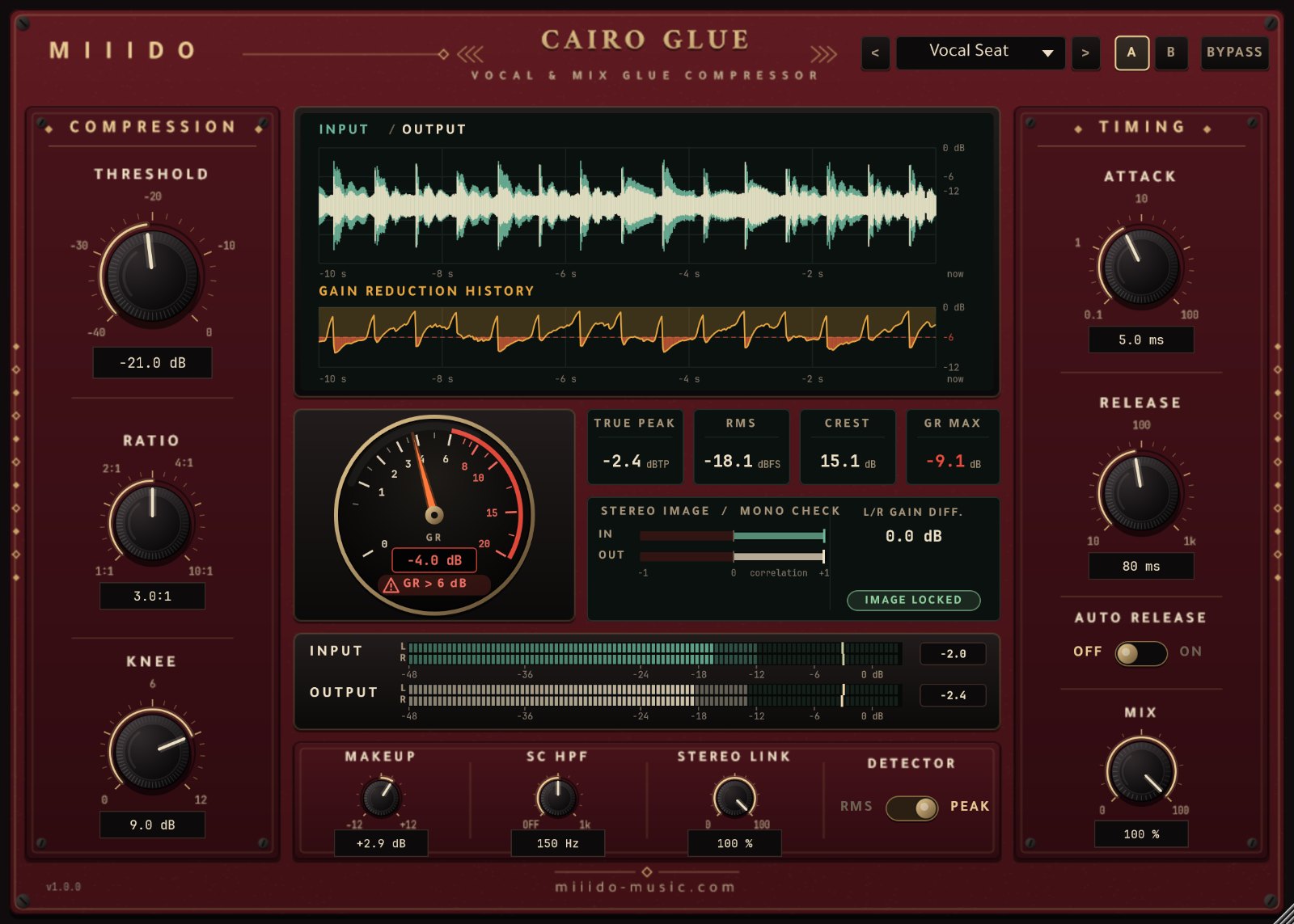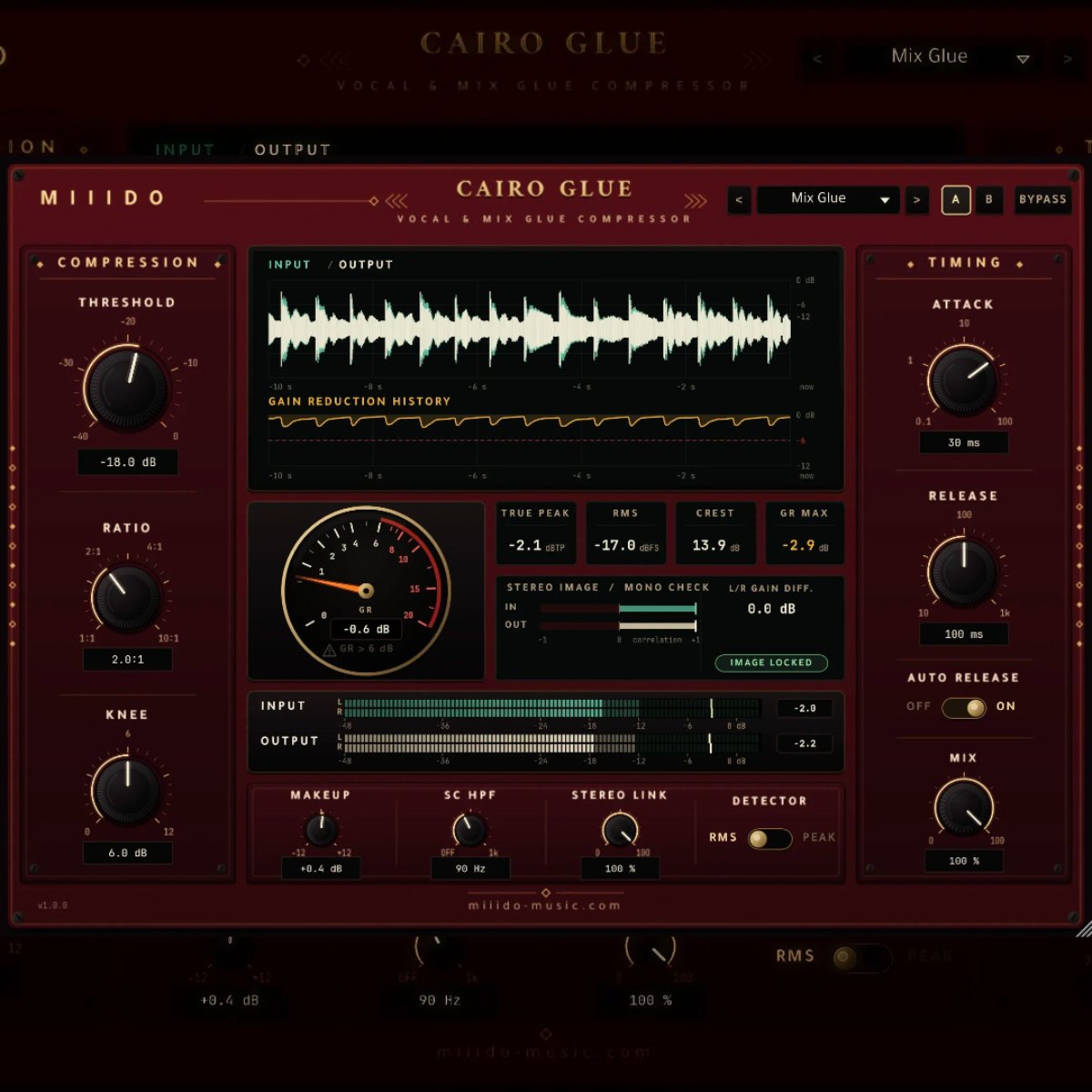
Cairo Glue free glue compressor plugin interface, with the Vocal Seat preset New
Plugins  /  Free glue compressor · VST3 / CLAP

Cairo Glue

Free vocal and mix glue compressor for Windows. Welds the vocal onto the beat without squashing it, without added distortion and without touching your stereo image, with a gain reduction gauge you read like a speedometer.

FreeVST3 / CLAPWindows 64-bit3 presetsZero latencyImage-locked stereoGR warning above 6 dB
★★★★★5.0· 4 ratings
KVR4 Favorite · 5 Want23 Oct 2026

Free with a free account — it downloads the moment you are in. Already have one? Sign in

Download for
No activation, no licence keyInstant downloadNo card needed
Overview

Every producer knows the moment: the beat slaps, the vocal is great, and they still sound like two different records played at once. Cairo Glue is the weld between them. Put it on the bus where your vocals and beat meet, turn the threshold until the needle moves 1 to 4 dB, and the two start breathing together. It only ever turns the level up and down: nothing in the sound path can colour it, delay it or shift its phase. Wide synths, stereo backing vocals and reverbs stay exactly where you put them, because the left and right channels always get the same gain. Named after the city that never stops moving and somehow still holds together.

At a glance

Contents
VST3 + CLAP · 3 presets · car-style GR gauge · image-locked stereo
Format
VST3 / CLAP
Size
3.1 MB (.zip)
Type
Plugin · Effect
Works on
Windows 64-bit
Version
1.0.0
Requirements
Windows 10 or 11, 64-bit · any DAW that loads VST3 or CLAP
In detail
01

What it does

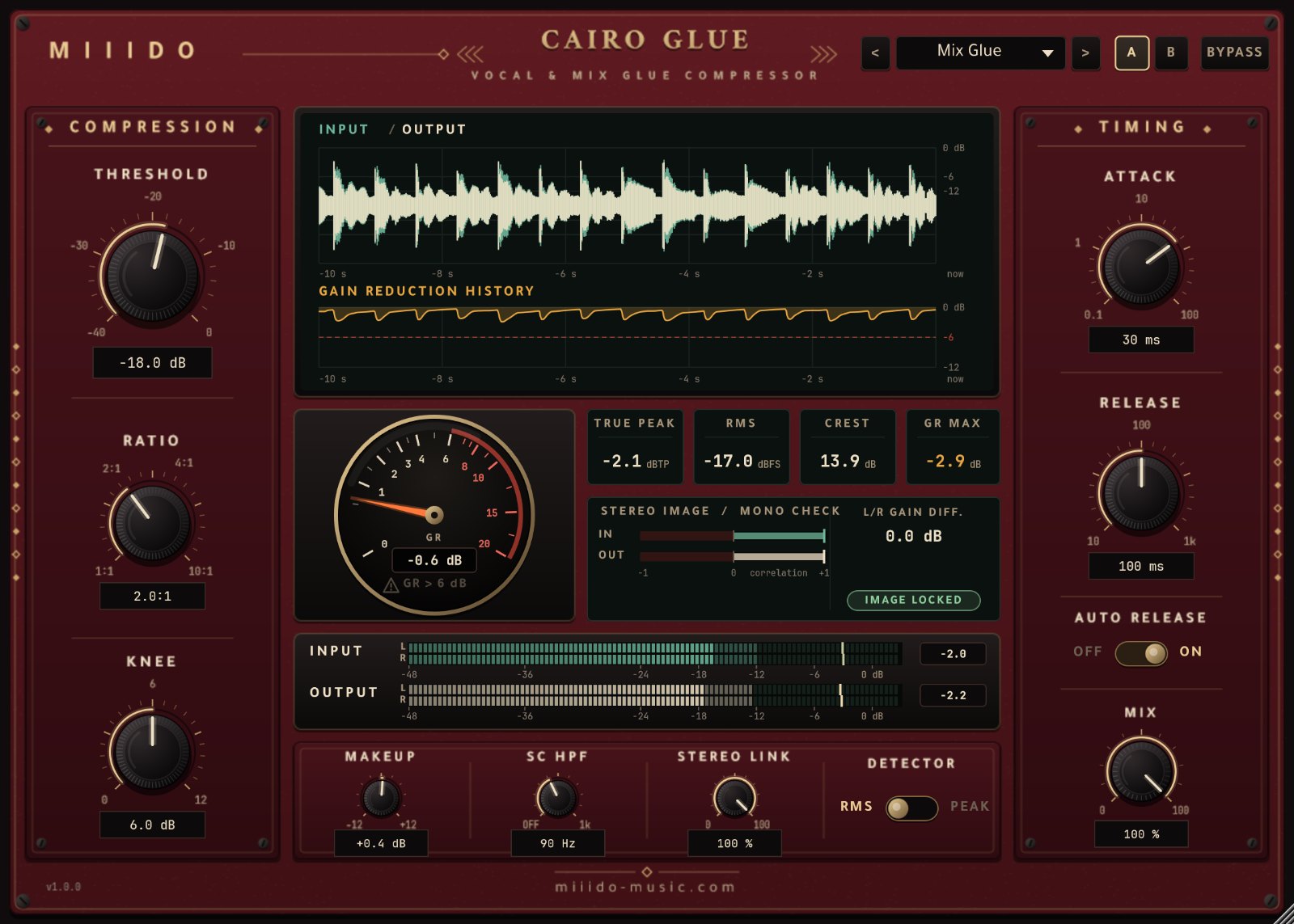
  • Threshold (-40.0 dB to 0.0 dB): where the compression starts. For glue, set it so the gauge moves 1 to 4 dB on the loud parts.
  • Ratio (1.0:1 to 10.0:1): how firmly the level above the threshold is held. 2:1 glues gently; 4:1 and above takes control.
  • Knee (0.0 dB to 12.0 dB): a soft knee fades the compression in around the threshold instead of switching it on, so it is harder to hear working.
  • Attack (0.10 ms to 100 ms): how fast it grabs. Slower settings (10 to 30 ms) let the punch of the drums and the bite of the consonants through; faster settings tame peaks.
  • Release (10 ms to 1.00 s): how fast the level comes back after the compressor lets go.
  • Auto release (on/off): program-dependent release. After a short peak the level recovers quickly; after a long loud passage it recovers slowly, so the mix does not pump. Measured: about 150 ms after a 30 ms burst, about 840 ms after 3 seconds of compression.
  • Makeup (-12.0 dB to +12.0 dB): level after the compressor, to match what you hear with Bypass.
  • SC HPF (Off to 1.00 kHz): a high-pass filter on what the compressor listens to, never on what you hear. Turn it up and the kick and 808 stop pushing the vocal down. In our test, 300 Hz took a 50 Hz kick from 13.7 dB of gain reduction to none.
  • Stereo link (0 % to 100 %): at 100 % both channels always get exactly the same gain, so the stereo image and the mono sum cannot change, and a sound that is out of phase between left and right is compressed exactly as much as the same sound in the centre. Lower values let each side compress on its own.
  • Detector (RMS or Peak): RMS follows loudness and is the smooth choice for glue; Peak catches every transient for tighter control. Both read a steady tone at its peak level, so the threshold means the same in both, and the Peak detector holds each peak for 12 ms so bass notes do not make the gain ripple.
  • Mix (0 % to 100 %): parallel compression. Blends the dry and the compressed signal, which are sample-aligned at every setting, so there is never any phasing.
  • Bypass and A/B: click-free bypass, and two settings slots to compare. Preset changes while the song plays do not click either.
02

Instruments you can trust

  • Gain reduction gauge: reads like a car speedometer, with the exact number under the needle. The scale gives the most room to 0 to 6 dB, where glue lives; past 6 dB it turns red and a warning lamp lights, because that is where compression starts to sound squashed. In our tests the needle showed the applied gain reduction with no measurable error.
  • 10-second history: input peaks behind output peaks, so you see exactly which hits the compressor touched, and the gain reduction underneath with anything over 6 dB in red.
  • True peak (ITU-R BS.1770, 4x oversampled), RMS, crest factor and GR max readouts.
  • Stereo image / mono check: input and output correlation, and the largest gain difference between left and right. 0.0 dB and "Image locked" mean the compressor cannot move, narrow or widen your mix.
  • Input / output meters: peak and RMS for each side, with a held max-peak number. They turn red only above 0 dBFS.
03

3 presets to start from

Measured on a full mix, none of the factory presets raises the peak level, and the loudness stays within 2 dB of the dry signal, so you can compare them fairly.

  • Mix Glue: bus glue for vocals and beat together: 2:1, slow attack keeps the drum punch, auto release, kick-proof sidechain.
  • Vocal Seat: on the vocal bus: 3:1 with a fast, peak-sensing attack holds the vocal steady so it sits on the beat.
  • Parallel Weld: parallel glue: 6:1 squeezed under the dry mix (40 %) for density without losing transients.
You can also save and load your own presets.
Cairo Glue 01 mix glue
Cairo Glue 02 vocal seat

04

Sound quality

  • Zero latency: no lookahead, 0 samples reported to your DAW.
  • Gain only: no filters, delays or oversampling in the sound path, so no phase shift. Below the threshold the signal comes out bit for bit as it went in, and Bypass is bit-exact.
  • Clean: harmonics under compression measured at -122 dBc on a 1 kHz tone and -83 dBc on a 100 Hz bass note with the Mix Glue preset.
  • Light: under 1 % of one CPU core at 48 kHz stereo.
  • Mono and stereo tracks, 44.1 to 192 kHz.
05

Install

Download the zip from your account, close your DAW and run the Setup file. VST3 is always installed, and you can tick CLAP if your DAW supports it. If an earlier Cairo Glue is installed, Setup replaces it automatically. Then rescan your plugins: Cairo Glue is listed under M III D O. The installer isn't code-signed yet, so Windows may show an unknown-publisher notice. Choose More info, then Run anyway.

Questions

Asked before.

Is it really free?

Yes. Make a free account, download, done. No activation, no licence key, no trial.

Can I use it in a song I sell?

Yes. Anything you make with it is yours to release and sell.

Which DAWs does it work in?

Any Windows 64-bit DAW that loads VST3 or CLAP plugins, such as FL Studio, Ableton Live, Reaper, Cubase, Studio One or Bitwig. It is listed with the dynamics and compressor plugins.

Where should I add it, which mixer bus?

On the bus where your vocals and beat meet, or on the vocal bus to seat the vocal. Start with a preset and move the threshold until the gauge shows 1 to 4 dB.

Will it make my wide sounds disappear in mono?

No. With Stereo Link at 100 % the left and right get the same gain at every moment, so whatever your mix sounds like in mono, it sounds the same after Cairo Glue. The stereo image meter shows it live.

Why does the lamp light up?

It lights when the gain reduction passes 6 dB. That is not an error, just a sign that you have moved from glue towards heavy compression.

Why does Windows warn me when I install it?

The installer isn't code-signed yet, so Windows doesn't recognise the publisher. Choose "More info", then "Run anyway".

Does it connect to the internet?

No. The plugin's own code makes no network requests.

Cairo GlueFree
Get it free